Troubleshooting
Common issues and solutions for the UE5 Navigation Template (Google Earth Style Controls).
Collision Issues
Falling Through Floor (First Person Mode)
This is the most common issue users encounter.
Symptoms:
- Player falls infinitely when entering first person mode
- Floor appears to have no collision
- Gravity pulls player down endlessly
- Happens especially with Level Instances or Instanced Static Meshes
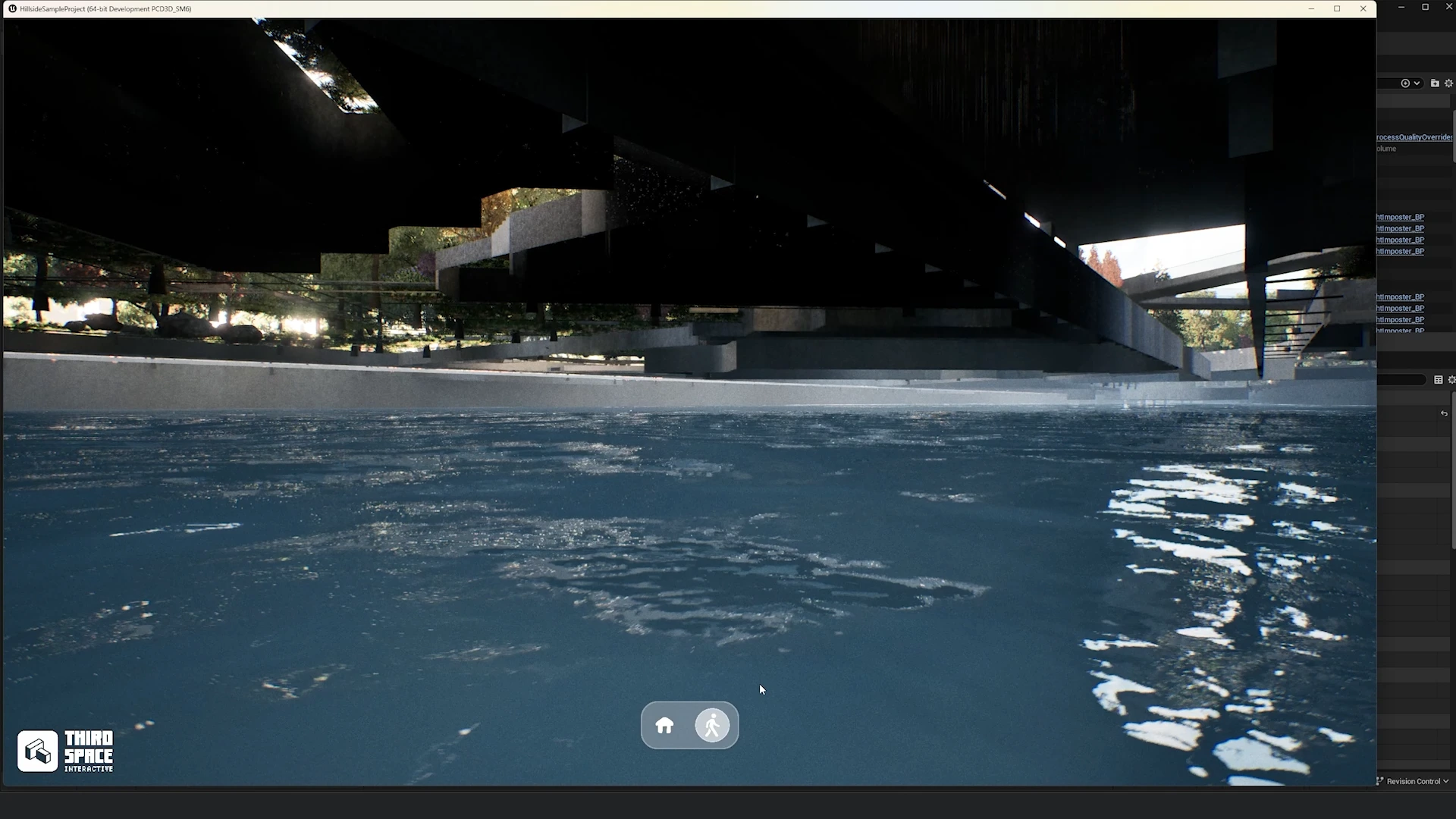
Root Cause:
Instanced Static Meshes and Level Instances often have collision disabled by default. The Collision Complexity setting needs to be changed from "Project Default" to "Use Complex Collision As Simple."
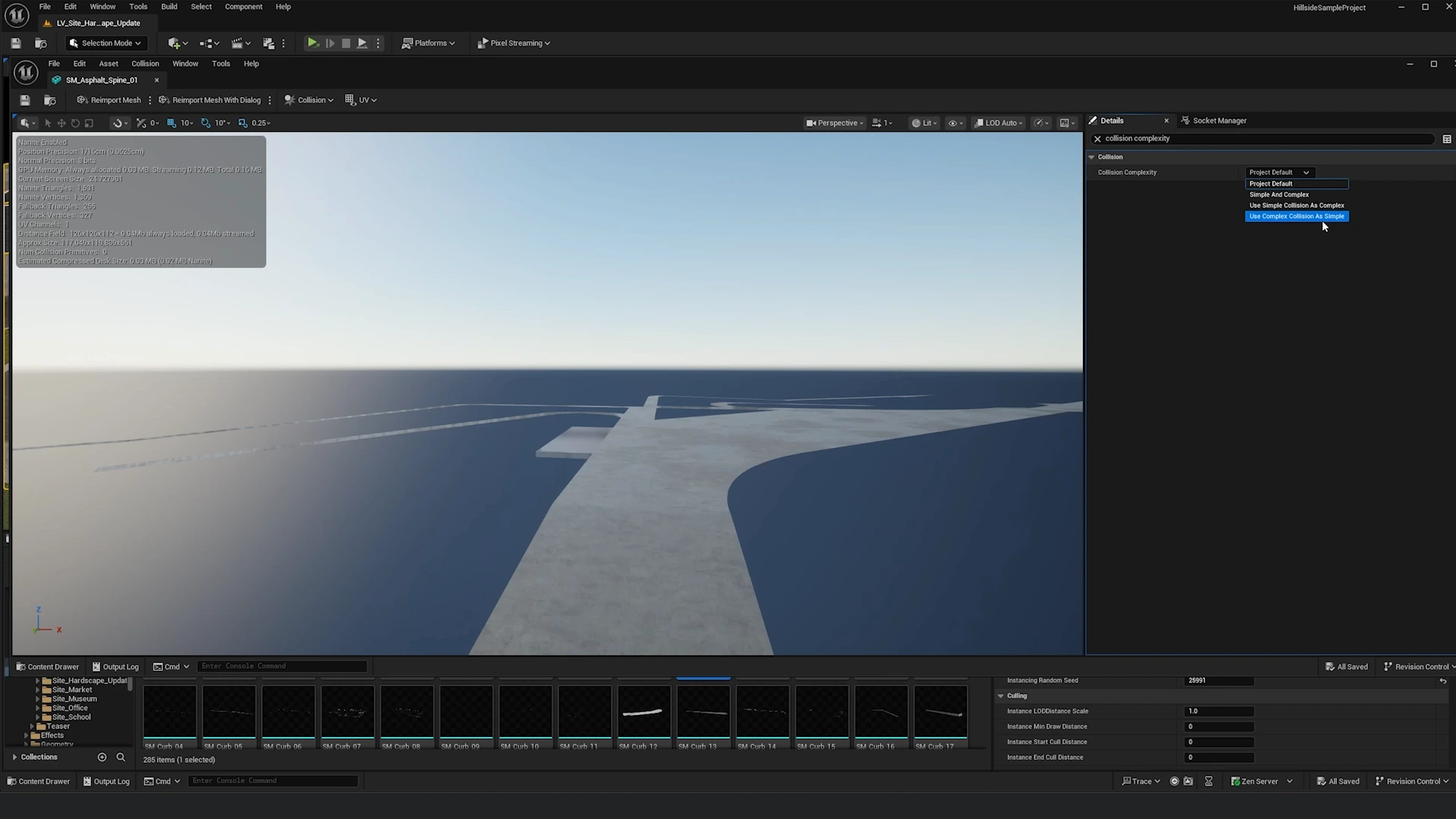
Solution 1: Fix Single Mesh
For individual problematic meshes:
- Select the mesh in your level
- In Details panel, click the magnifying glass icon next to Static Mesh to browse to the asset
- Double-click the static mesh to open Static Mesh Editor
- Search for "collision complexity"
- Change Collision Complexity from Project Default to Use Complex Collision As Simple
- Save the asset
- Return to level and test
Solution 2: Batch Fix Multiple Meshes (Recommended)
For many meshes - this is the most efficient workflow:
- Navigate to the folder containing your floor meshes in Content Browser
- Press Ctrl + A to select all meshes
- Right-click → Asset Actions > Edit Selection in Property Matrix
- In Property Matrix, click Pin Columns
- Type "collision complexity" and press Enter
- Select all rows (Ctrl + A)
- In the Collision Complexity dropdown at the bottom, select Use Complex Collision As Simple
- Press Ctrl + S to save all changes
- Close Property Matrix
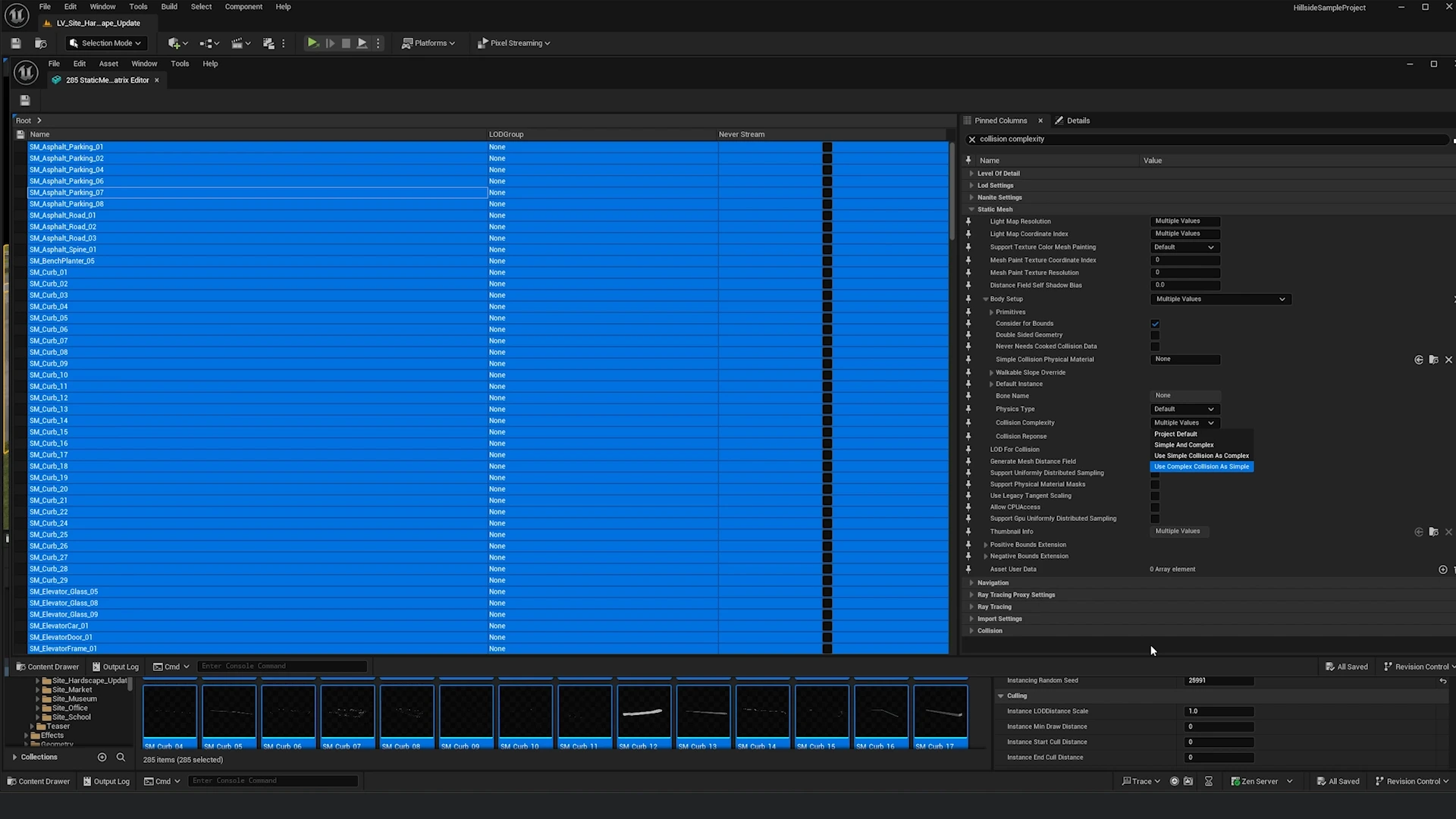
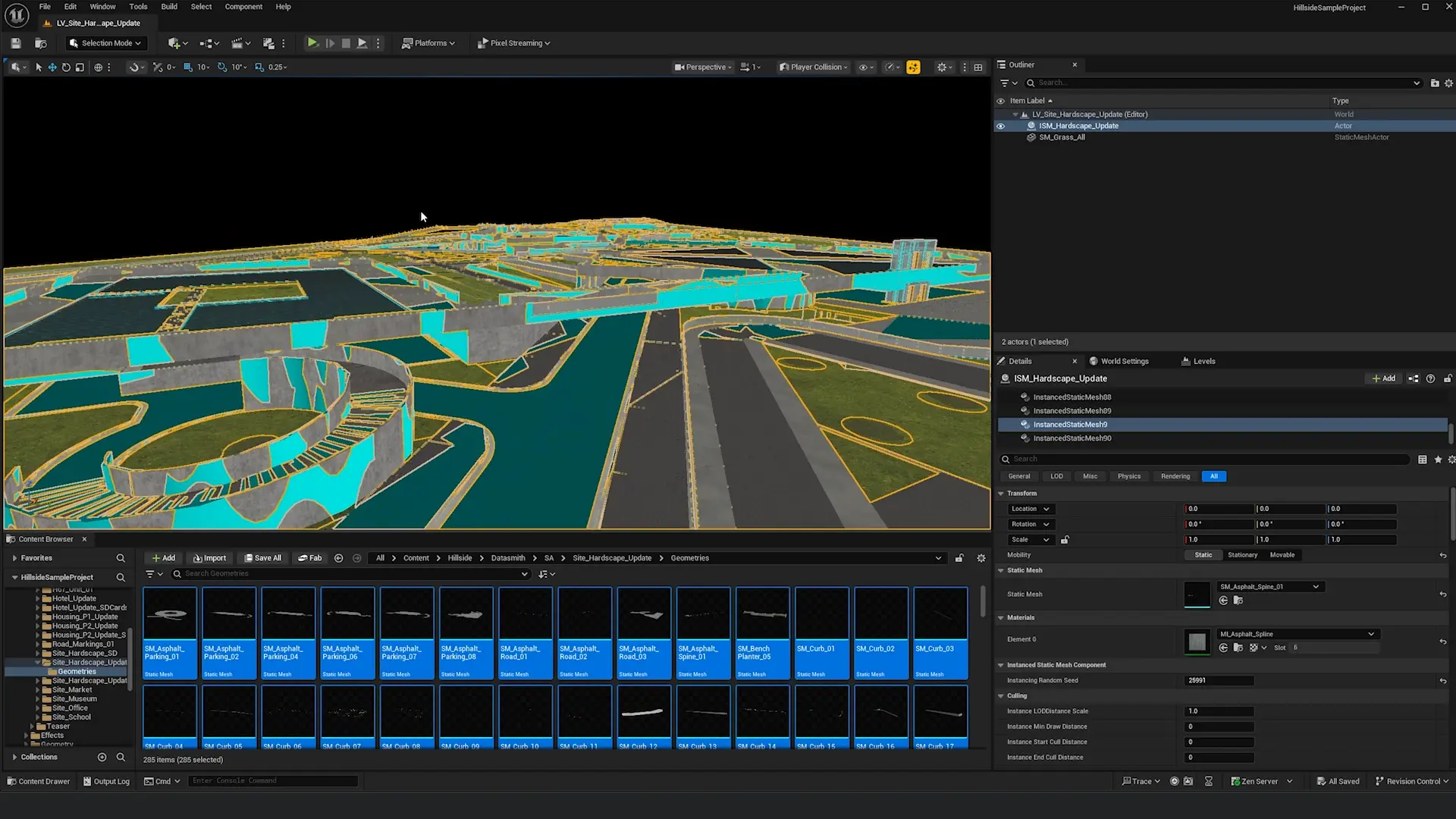
Pro Tip: This workflow can fix hundreds of assets in seconds. The example in the video fixed 285 assets at once!
Verification:
- In viewport, enable Show > Collision > Player Collision
- Blue meshes = collidable with player
- Non-blue meshes = NOT collidable
- Ensure floor surfaces appear blue
- Test in first person mode
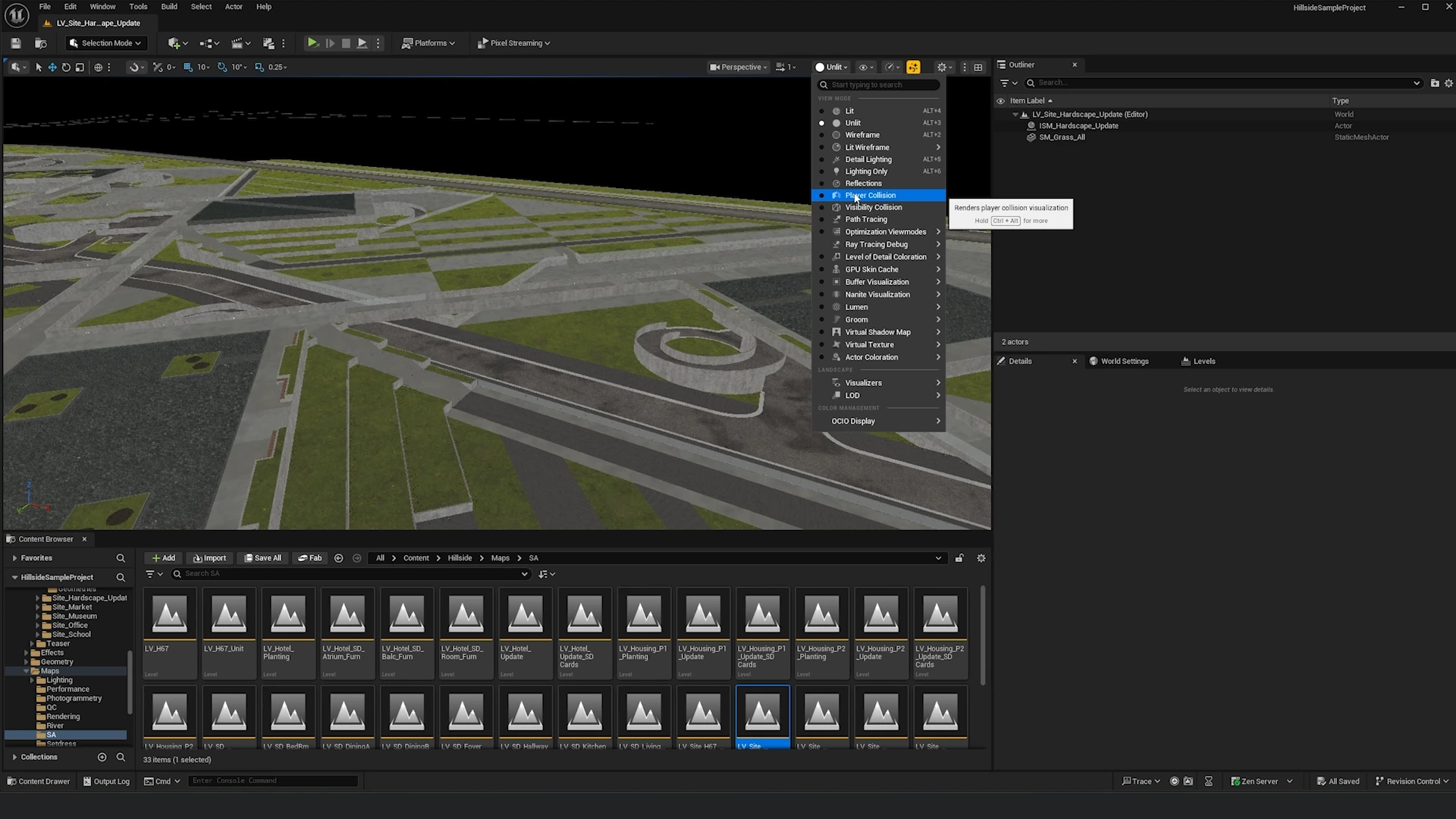
After fixing:
Performance Note:
Using "Complex Collision as Simple" increases physics calculation cost. For very large scenes (1000+ objects), consider:
- Using simplified collision meshes instead
- Only applying to critical walkable surfaces
- Using collision LODs for distant objects
Can't Click to Move
Symptoms:
- Clicking floor does nothing in first person mode
- Character doesn't move when clicking
- No response to floor clicks
Solutions:
-
Verify FloorPlate collision:
- Select floor objects in Outliner
- Check Object Type is set to FloorPlate
- Ensure Collision Enabled is Query and Physics
- See Basic Navigation Setup
-
Check collision channels exist:
- Open Edit > Project Settings > Collision
- Verify FloorPlate object channel exists
- If missing, create it (see Basic Navigation Setup)
-
Test collision visibility:
- Enable Show > Collision in viewport
- Floor should have visible collision geometry
- Look for green or purple wireframes
Objects Not Selectable
Symptoms:
- Clicking objects doesn't focus camera
- No highlight when hovering over objects
- Selection system not working
Solutions:
-
Verify SelectableMesh collision:
- Select objects in Outliner
- Set Collision Presets to Custom
- Set Object Type to SelectableMesh
- See Basic Navigation Setup
-
Check post-process material:
- Verify MI_SelectionHighlight is assigned to Post Process Volume
- See Selection System
-
Verify collision geometry exists:
- Open mesh in Static Mesh Editor
- Check collision is not empty
- If missing, generate collision: Collision > Add Box/Sphere/Capsule Collision
Camera Issues
Camera Too Close/Far
Symptoms:
- Can't zoom close enough to objects
- Can't zoom far enough to see full scene
- Zoom range feels limited
Solutions:
-
Adjust min/max distances:
- Open character blueprint
- Find Min Camera Distance variable
- Find Max Camera Distance variable
- Adjust to appropriate ranges for your scene
-
Check SpringArm length:
- Select SpringArm component
- Adjust Target Arm Length
- This sets the default camera distance
Camera Movement Too Fast/Slow
Symptoms:
- Camera responds too quickly/slowly to input
- Uncomfortable navigation experience
- Controls feel unresponsive or too sensitive
Solutions:
-
Adjust speed variables:
- Open character blueprint
- Modify OrbitSpeed, PanSpeed, ZoomSpeed
- Typical range: 0.5 - 2.0
-
Check input sensitivity:
- Edit > Project Settings > Input
- Adjust axis scales for Turn and LookUp
- Lower values = slower, more precise
- Higher values = faster, more responsive
Visual/Material Issues
No Highlight on Hover
Symptoms:
- Objects don't highlight when hovering
- Selection works but no visual feedback
- Outline not visible
Solutions:
-
Verify post-process setup:
- Does Post Process Volume exist in level?
- Is Infinite Extent (Unbound) enabled?
- Is MI_SelectionHighlight assigned to Post Process Materials array?
-
Check material parameters:
- Open MI_SelectionHighlight
- Highlight Color is not black?
- Glow Intensity > 0?
- Line Width > 0?
-
Verify anti-aliasing:
- Edit > Project Settings > Rendering
- Anti-Aliasing Method should be TAA or MSAA
- Outlines require AA to render properly
-
Check stencil rendering:
- Ensure project supports custom depth/stencil
- Project Settings > Rendering > Postprocessing > Custom Depth-Stencil Pass = Enabled
Highlight Color Wrong
Symptoms:
- Highlight is default orange instead of custom color
- Changes to material don't appear in-game
- Color not updating
Solutions:
-
Check correct material instance:
- Verify Post Process Volume references your edited material instance
- Not the parent material M_SelectionHighlight
- Use MI_SelectionHighlight (Material Instance)
-
Save material changes:
- Ensure you saved the material instance after editing
- Try closing and reopening Material Instance Editor
- Reload level
-
Force material update:
- Remove material from Post Process Volume
- Save level
- Re-add material
- Test again
Input Issues
Controls Not Working
Symptoms:
- Mouse input doesn't move camera
- Keyboard shortcuts don't work
- Touch controls not responding (mobile)
- Nothing happens when clicking
Solutions:
-
Verify game mode:
- Window > World Settings
- Game Mode Override set to TSI_Gamemode_Basic or TSI_Gamemode_Advanced?
- Correct game mode selected?
-
Check input mappings:
- Character > Inputs > IMC Touch + IMC Desktop
- Verify Action/Axis mappings exist for:
- Touch and Desktop Input Mapping Context
- You can also change the inputs here
- Check for conflicting mappings
-
Player controller:
- Ensure correct player controller is being used
- Check controller isn't disabled in blueprint
- Verify input mode is set correctly
- Check that it is being spawned at Event Begin Play in your Player Controller (basic or advanced depending on the game mode chosen)
-
UI blocking input:
- Check if UI widget is consuming input
- Disable UI temporarily to test
- Verify input mode allows game input
Getting Additional Help
Documentation Resources
- Video Tutorial: Original setup video (linked in template description)
- Online Docs: docs.thirdspaceinteractive.ca
- FAB Product Page: Check Q&A section for common questions
Community Support
- Unreal Forums: Search for "UE5 Navigation Template, Google Earth Style Controls"
- FAB Reviews: Check product reviews for user tips
- Discord: Join Third Space Interactive community Discord Channel
Reporting Bugs
If you encounter a bug:
-
Document the issue:
- Steps to reproduce
- Screenshot or video
- Unreal Engine version
- Platform (PC/Mobile/Pixel Streaming)
-
Check if known issue:
- Search this troubleshooting page
- Check FAB product page
-
Report:
- Contact support via FAB Marketplace
- Provide all documentation from step 1
Preventive Maintenance
Before Shipping Project
Checklist of items to verify:
- ✅ Test both Basic and Advanced navigation modes
- ✅ Test on target platforms (desktop/mobile/pixel streaming)
- ✅ Verify all floor surfaces have FloorPlate collision
- ✅ Verify selectable objects have SelectableMesh collision
- ✅ Test selection on all interactive objects
- ✅ Verify first person mode doesn't fall through floor
- ✅ Check camera doesn't clip through walls
- ✅ Test click-to-move on all walkable surfaces
- ✅ Verify highlights appear on hover
- ✅ Check performance with Profiler
- ✅ Test all camera modes and transitions
Regular Checks During Development
- Test navigation after adding new geometry
- Re-verify collisions after mesh updates
- Check performance after lighting changes
- Test on target devices frequently
- Validate collision channels still exist
Quick Reference: Common Solutions
| Problem | Quick Fix |
|---|---|
| Falling through floor | Set Collision Complexity to "Use Complex Collision As Simple" |
| Can't click to move | Assign FloorPlate collision to floor objects |
| No selection highlight | Add MI_SelectionHighlight to Post Process Volume |
| Objects not selectable | Assign SelectableMesh collision to objects |
| Camera clipping walls | Enable Do Collision Test on SpringArm |
| Controls not working | Check Game Mode is set correctly |
| Highlight wrong color | Edit MI_SelectionHighlight material instance |
| Low performance | Reduce selectable objects, optimize collision |
Related Pages
- Basic Navigation Setup → (Complete setup guide)
- Advanced Navigation Setup → (Advanced features and collision complexity)
- Selection System → (Selection and highlight setup)