Creating a Build for Pixel Streaming and Linux from Windows
This guide walks through the process of packaging an Unreal Engine project for Linux from a Windows development environment, preparing it for Pixel Streaming deployment.
Install the Clang Toolchain
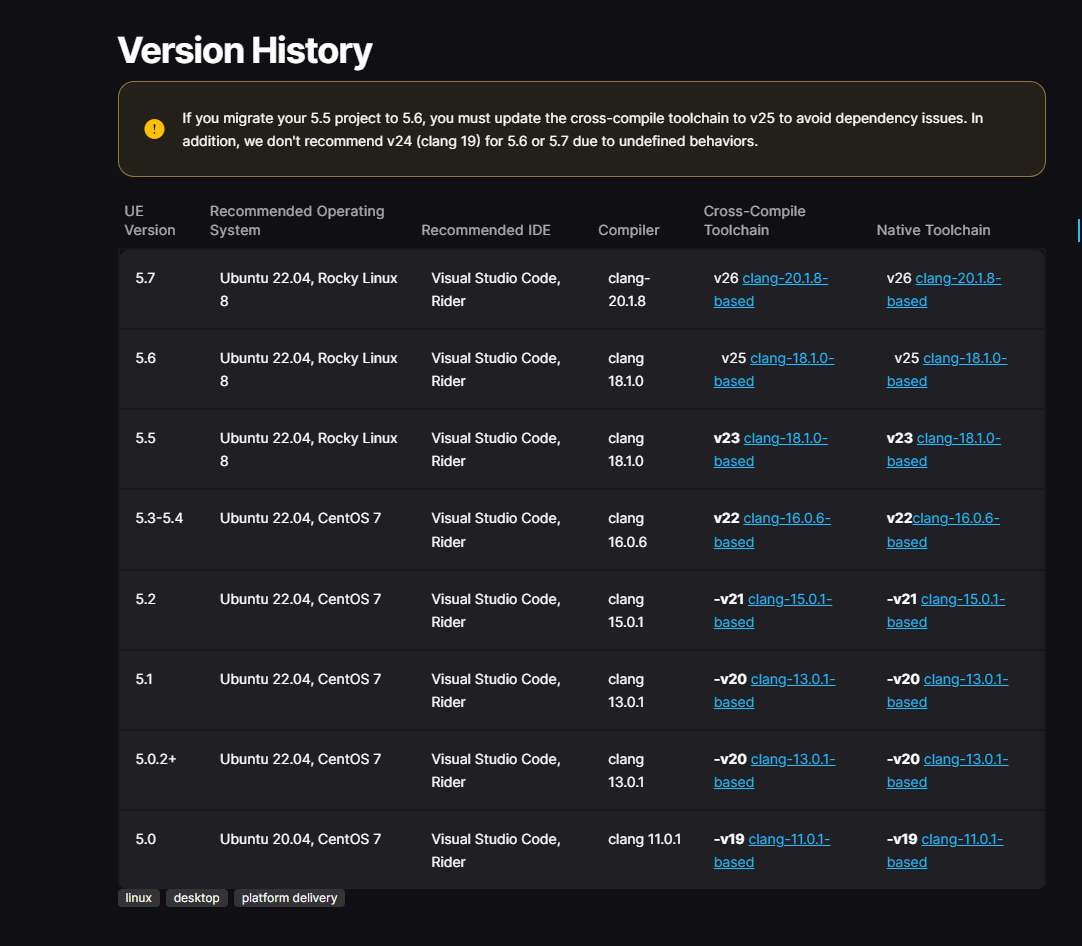
Install the Clang cross-compilation toolchain associated with your Unreal Engine version:
The table below shows which Clang toolchain version is required for each Unreal Engine version:
Verify the Toolchain Installation
Once the toolchain is installed, an environment variable called LINUX_MULTIARCH_ROOT should have been set automatically.
Make sure the environment variable has been set:
- Open the Command Prompt (type
cmdin the Start menu) - Paste the following command and press Enter:
%LINUX_MULTIARCH_ROOT%x86_64-unknown-linux-gnu\bin\clang++ -v
This should return information about the Clang toolchain that was just installed.
If the command doesn't return toolchain information
- Open the Environment Variables control panel by typing "environment variable" in the Start menu
- In the System Properties window, click Environment Variables
- Make sure that
LINUX_MULTIARCH_ROOTis set and points to the directory where the toolchain was installed - The toolchain location must be accessible in the directory path during cross-compilation
Installing Prerequisites
Enable the Linux Target Platform
- Open the Epic Games Launcher
- Go to the specific engine version dropdown and click Options
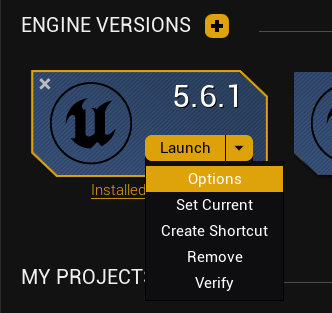
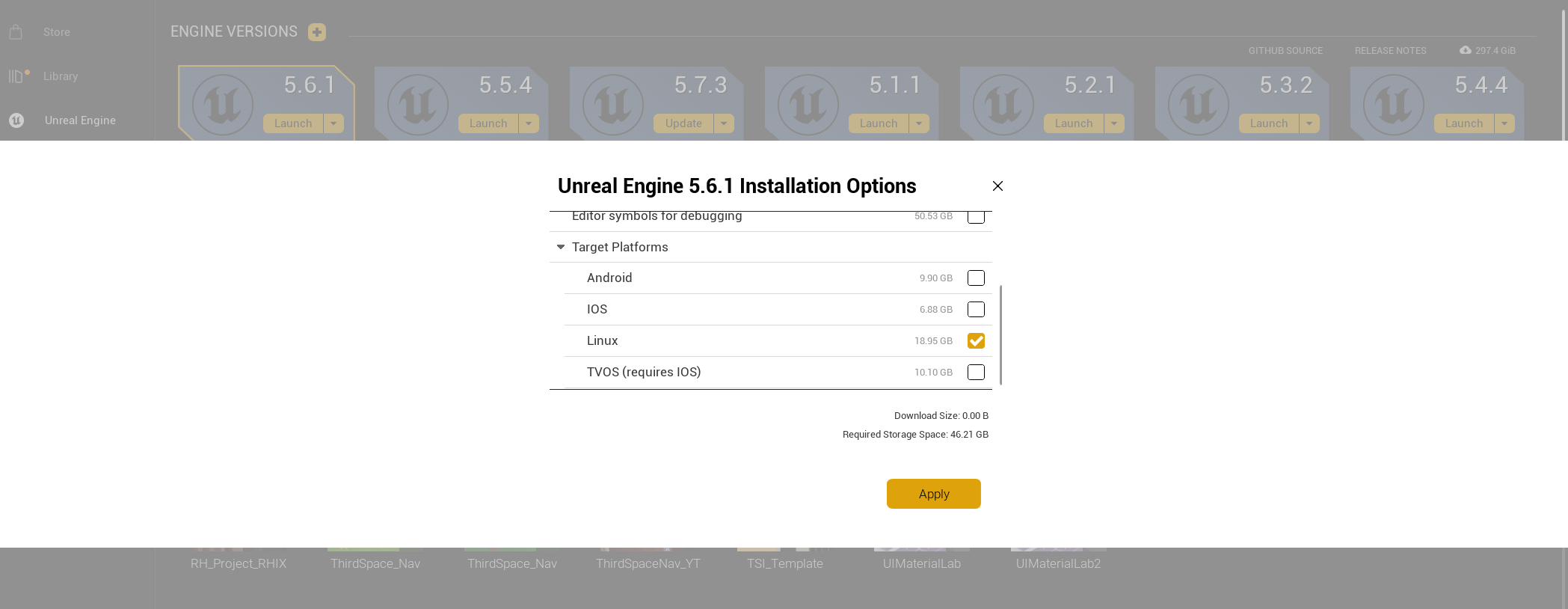
- Under Target Platforms, check the Linux option
- Click Apply
Enable the Pixel Streaming Plugin
Within your Unreal Engine project, make sure that the Pixel Streaming plugin is enabled in the Plugin Manager.
Building for Linux
- In the Unreal Editor, go to Platforms on the top menu
- Select Linux
- Verify that there is something listed under Installed SDK (this confirms the toolchain is detected)
- Select Package Project